

Digital Ticket Management
EVZ Tickets App Replaced—Ticket Management Now in the EVZ App
With the transition to the new ticketing system for the 2026/27 season, the previous «EVZ Tickets App» has been discontinued. Your season pass tickets and single-ride tickets are now available in the EVZ App via your personal v account.
A «My EVZ» account is required to receive your digital season pass tickets.
Update the EVZ app or download it to your smartphone from the Google Play Store or App Store.
Below you'll find all the information you need about receiving and managing your tickets.
The «EVZ Tickets App» will no longer be needed starting with the 2026/27 season
INFORMATION DIGITAL TICKET MANAGEMENT
«My EVZ»-Registration
If you don't have a «My EVZ» account yet, please register at https://www.evz.ch/my-evz/ using the same email address you used when purchasing your season pass or ticket.
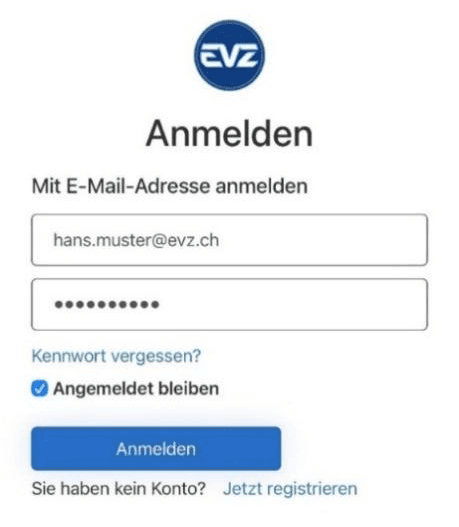
If you're not sure whether you already have an account, try logging in at www.evz.ch/account. If you're able to log in, you already have an account. If you don't have an account yet, click «Register Now» and follow the registration steps.
Open the EVZ app and sign in with your «My EVZ» credentials
Open the EVZ app and tap the «Tickets» menu item at the bottom. Log in with your «My EVZ» credentials. Your tickets for the next home game will appear right at the top.
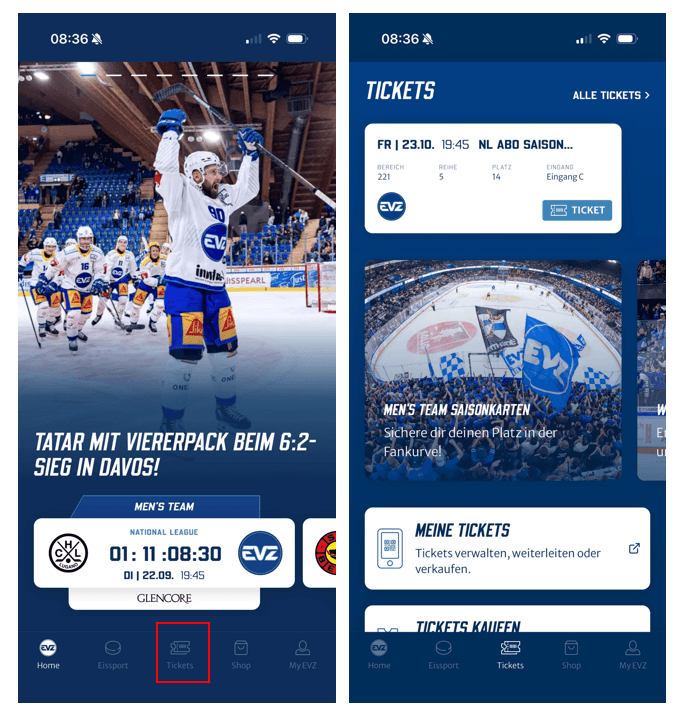
In the «My Tickets» section of your account, you’ll find the following features:
Tickets: Here you can manage your tickets.
Ticket Transfers: Here you’ll find an overview of tickets you’ve received and transferred.
Orders: Here you can view your orders.
Reservations: Here you can view your open and completed reservations.
Personal Information: Here you’ll find your personal «My EVZ» area.
Payment Methods: Here you can enter your bank account information for ticket purchases on the secondary market.
View Ticket
To view your ticket and show it at the entrance, tap the ticket button
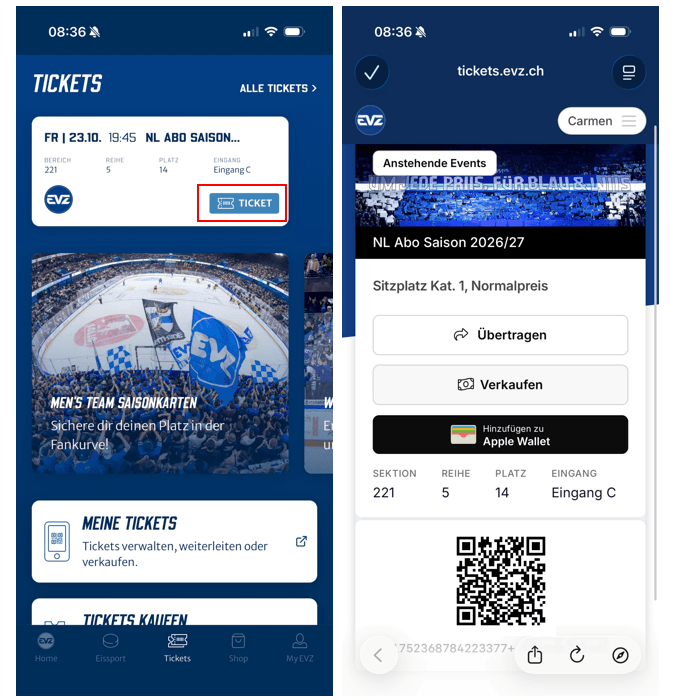
If you have multiple tickets for a single game, you can manage them in the «My Tickets» menu. Tap «My Tickets» and then tap the ticket for the upcoming event.
Swipe the tickets to the left to switch between them. This allows you to quickly and easily present each ticket at the entrance for scanning.
Transfer Tickets
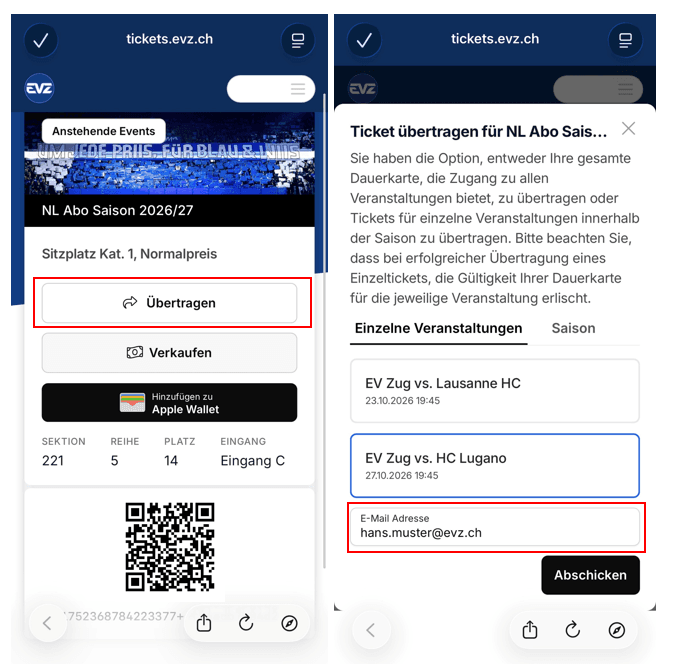
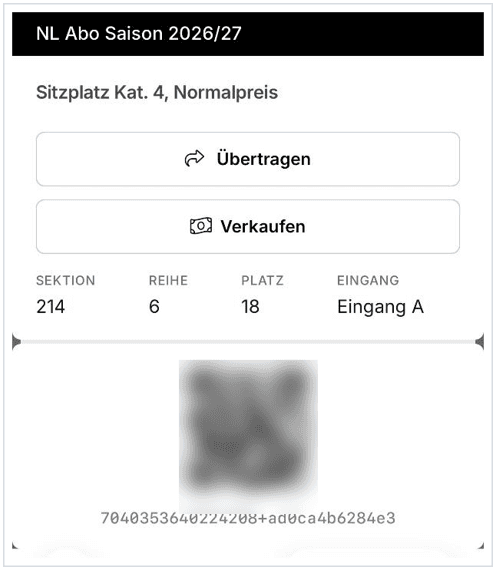
To transfer your ticket to another person, tap the «Transfer» button on the ticket
You have the option to transfer your entire season ticket or tickets for individual games.
You can transfer your entire season pass no later than September 30, 2026. After that date, tickets can only be transferred on a per-event basis.
To forward tickets for individual home games, tap the desired game in the «Individual Event» menu. Enter the recipient’s email address and double-check that it’s spelled correctly. After you tap «Send,» you’ll see a confirmation of the ticket transfer.
Transfer Full-Season Passes
You can transfer your entire season pass no later than September 30, 2026. After that date, tickets can only be transferred on a per-event basis.
To forward the entire season pass, tap «Season» and enter the recipient's email address. Check the email address for spelling errors before sending. After you tap «Send,» you'll receive a confirmation of the transfer.
Receive Ticket
To receive a ticket, you, as the recipient, do not necessarily have to create a «My EVZ» account or register. However, a «My EVZ» login is recommended for easy ticket management.
You'll receive a transfer confirmation via email. Tap «Complete Transfer» to accept or decline the ticket.
To accept the ticket, enter your first and last name and tap «Accept.»
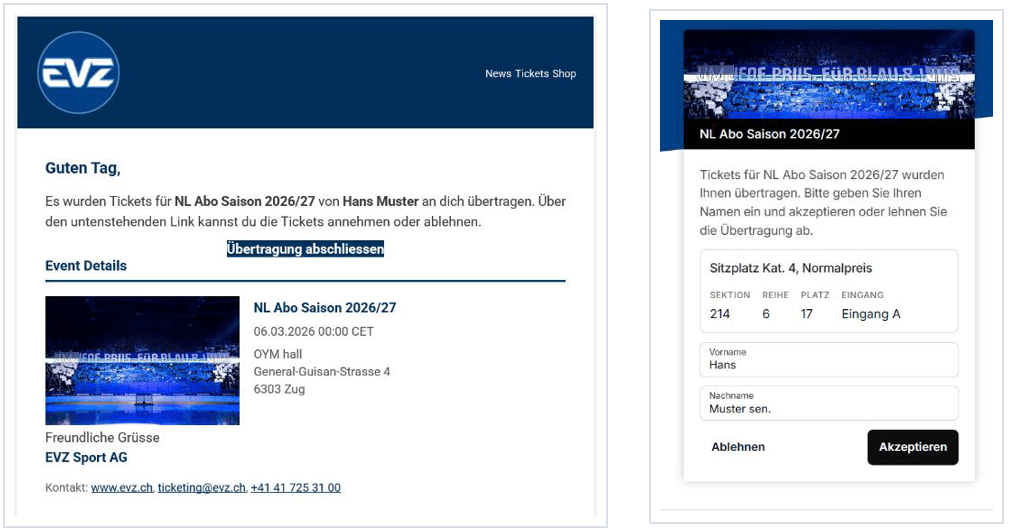
You'll then receive the ticket in another email. Tap «View Ticket»
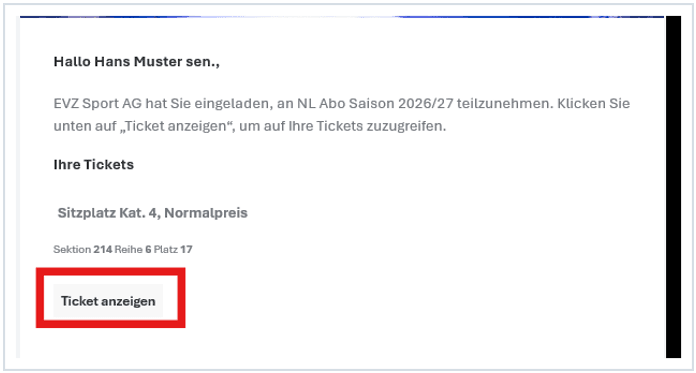
If you don't have a «My EVZ» account, you'll need to save this email so you can access the ticket at any time. Alternatively, you can download the ticket to your smartphone's wallet.
Add a ticket to Apple Wallet / Google Wallet
As a match attendee, you can also add your single-entry ticket to your smartphone's wallet if you'd like.
Tap the «Add to Apple Wallet» or «Add to Google Wallet» button on the ticket you want.
PLEASE NOTE: Forwarding the ticket directly from the Wallet is not recommended due to compatibility issues between Apple and Android and may cause problems. You can manage your ticket using your «My EVZ» login in the EVZ app or in a web browser.
Managing Tickets via a Web Browser
You can also manage your tickets in your web browser at tickets.evz.ch/account/tickets.
To do so, log in using your «My EVZ» credentials on the login screen.
INFORMATION ON SECONDARY MARKET TICKETS
Required: Add a payment method
In order to list your 2026/27 season ticket for sale on the secondary market, you must have a payment method on file in your account.
Tap «Payment Methods» and then «Add Your First Payment Method.» Next, enter your bank account information, including the IBAN, BIC, and the account holder's name.
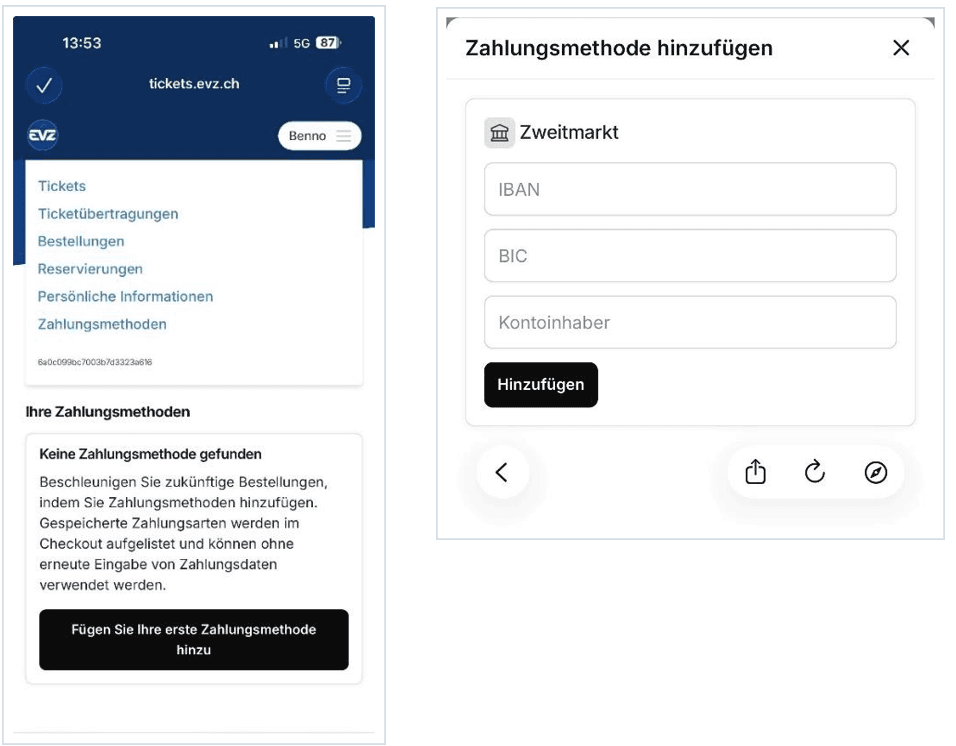
Complete the process by tapping «Add.»
Without providing valid bank account information, it is not possible to make a sale on the secondary market.
Please note that the balance will not be paid out until 30 days after the successful sale, but no later than the end of the following month.
List a ticket on the secondary market
Please note: This feature will be enabled at a later date and is not currently available. To list your reserved-seat season ticket for sale on the secondary market, tap your reserved-seat season ticket and then tap the «Sell» button.
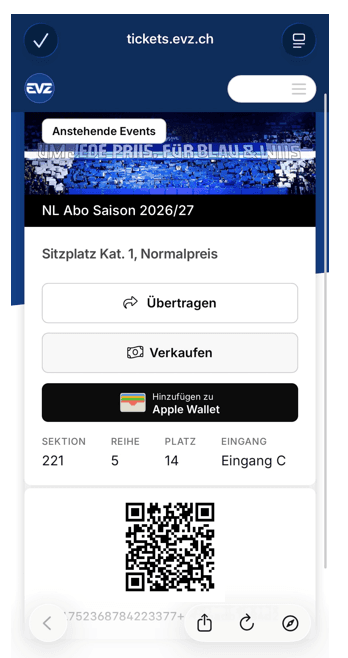
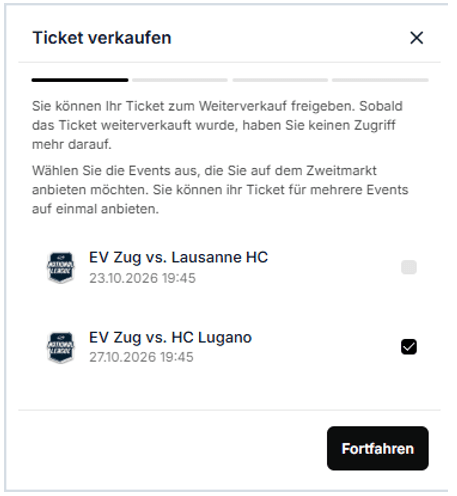
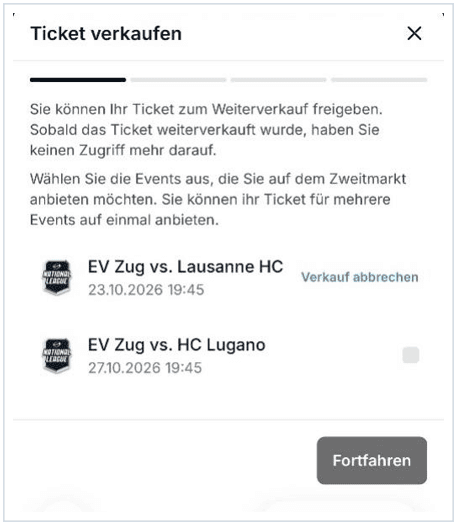
Tap the game you want to sell your ticket for, and then tap «Continue.»
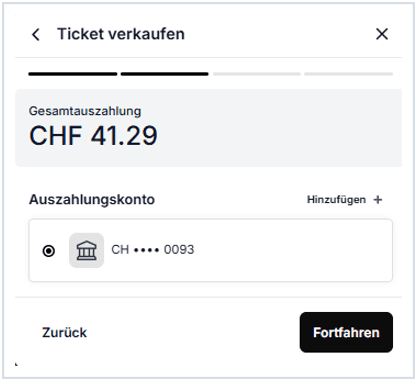
You will then be shown the amount that will be paid out to which payout account upon a successful sale.
In the summary, double-check that you've selected the right ticket for the right game. Then tap the «Offer ticket on the secondary market» button. Your ticket will then be listed on the secondary market.
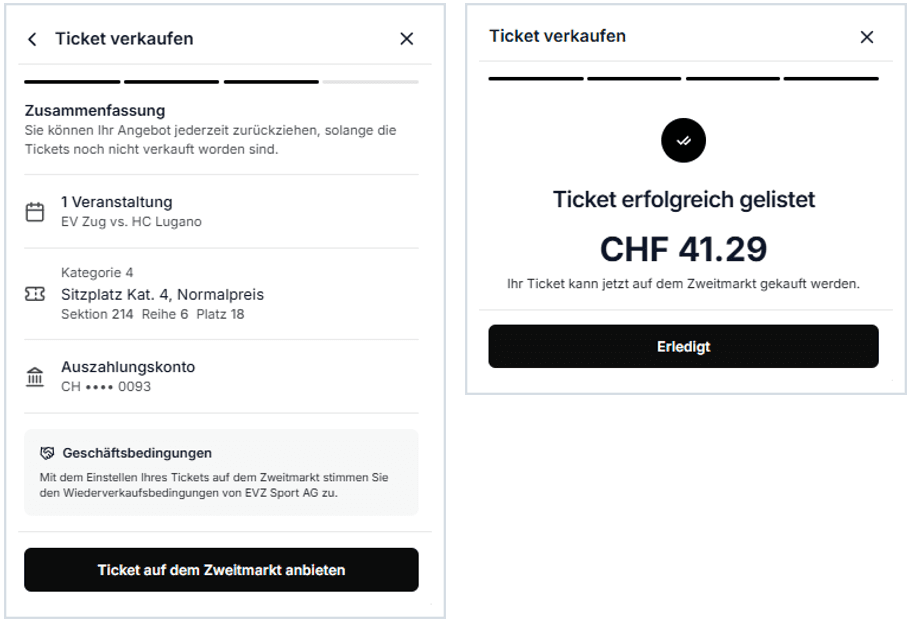
NEW: Please note that funds will be paid out 30 days after the successful sale, but no later than the end of the following month.
Withdraw a ticket from the secondary market
You can withdraw your ticket from the secondary market and cancel the sale at any time, as long as the ticket hasn't been purchased yet.
To withdraw the ticket, tap «Manage Sale» on the ticket.
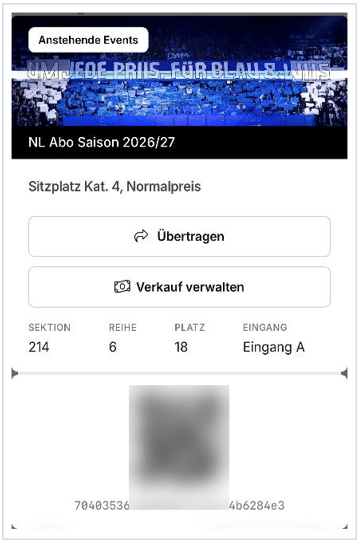
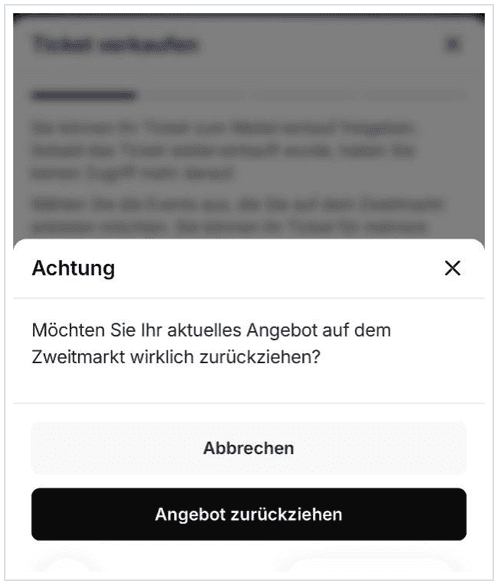
Tickets offered for sale on the secondary market are marked with the message «Cancel Sale.» Tap «Cancel Sale» on the ticket you want.
Confirm that you're withdrawing the ticket from the secondary market by tapping «Withdraw Offer.»
Your ticket will then be available again in the app.
Contact Form
Do you have a question for us? Then please fill out the contact form.
We will get back to you as soon as possible!